Customize Auto Recurring Fee Rule Associated with Groups
Stay allows users to customize the Auto Recurring Fee rule (Defaults Fees and Single Condition Rules) associated with a group. Multi Condition Rules cannot be associated with a group. The customized rule will be applicable only for in-house and future reservations () created for the group. The modifications made when customizing the rule at the group will not be applied to the parent rule created in the Auto Recurring Fees tab of the Guest Accounting screen (Settings ➜ Guest Accounting ➜ Auto Recurring Fees ➜ Defaults Fees/Single Condition Rules).
For example, assume a default auto recurring fee rule, associated with a group that posts the transaction item, Resort Fee, to the reservations created for the group on the last night of stay. If a user wishes to modify the fee amount or the frequency of posting only for the associated group, then the rule can be customized at the group level without modifying the rule in the Guest Accounting screen.
Customizing the ARF Rule
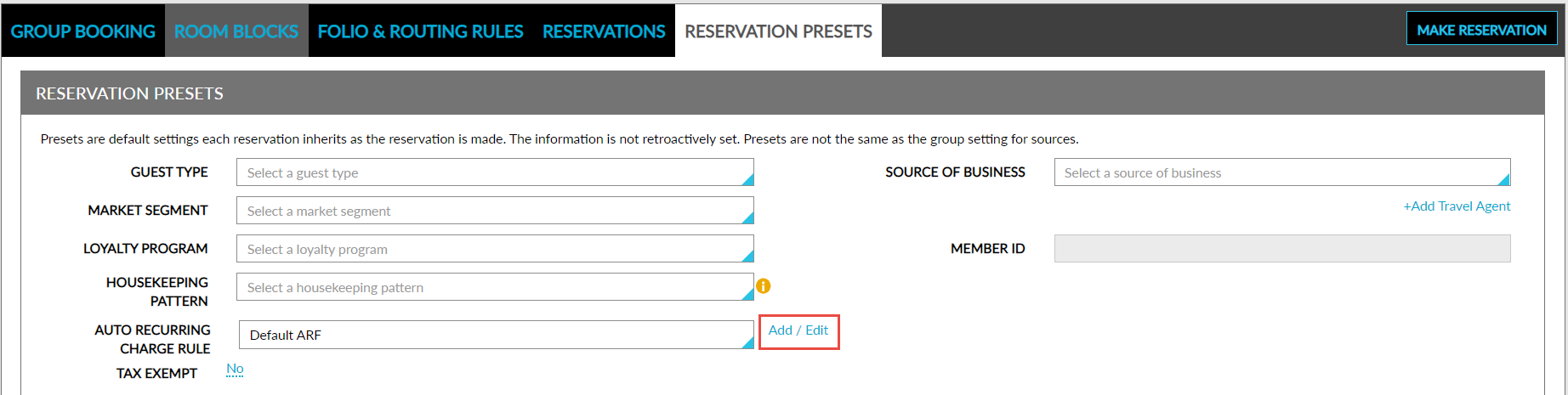
Users can customize the Auto Recurring Fee rule (Defaults Fees and Single Condition Rules) associated with a group by clicking the Add/Edit button next to the Auto Recurring Charge Rule drop-down list in the Reservation Presets tab of the group. When clicked, the Add/Edit Rule for the Group - {Group Name} screen appears that allows users to add/remove items and modify the amount, and the frequency at which the items must be posted.
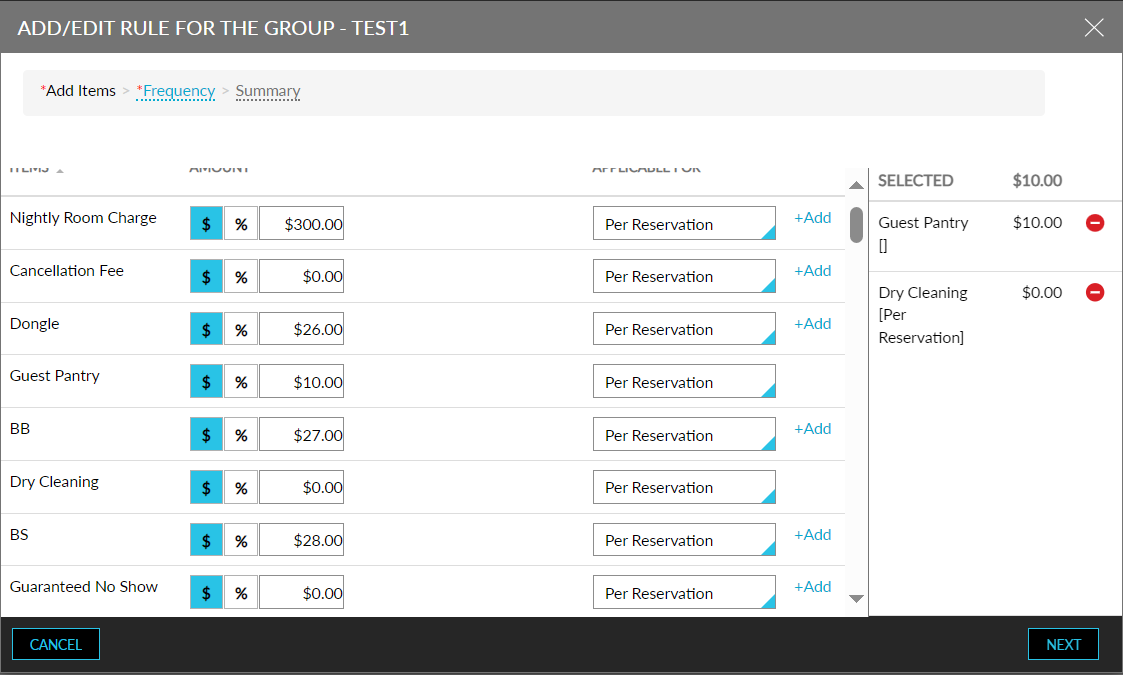
When users click Save after making changes, the Apply Auto Recurring Rule pop-up screen appears that prompts users to select the group’s reservations for which the modified rule must be applied. Users must select from the following options:
-
In-House Reservations: When selected, the modified rule will be applied to all the group reservations that are in-house.
-
Existing Future Reservations (not in-house): When selected, the modified rule will be applied to all the group reservations that are created for the future dates.
-
Future Reservations: When selected, the modified rule will be applied to all the group reservations that will be created in the future.
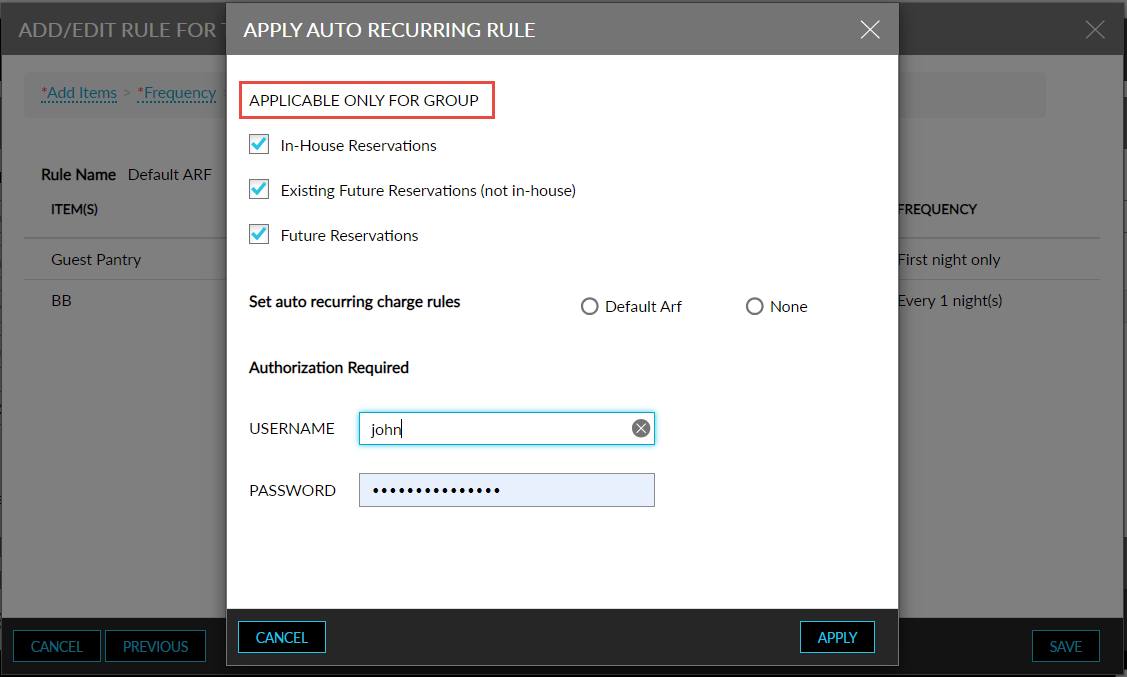
Any one of the mentioned options must be selected to customize the rule. Users must enter their credentials in the Username and Password fields. The modifications will be saved once the credentials are validated successfully.
Once the modifications are saved, the customized rule is displayed in the following format: CUSTOM - Default ARF - Group Name in the Auto Recurring Charge Rule drop-down list in the Reservation Presets tab of the group.
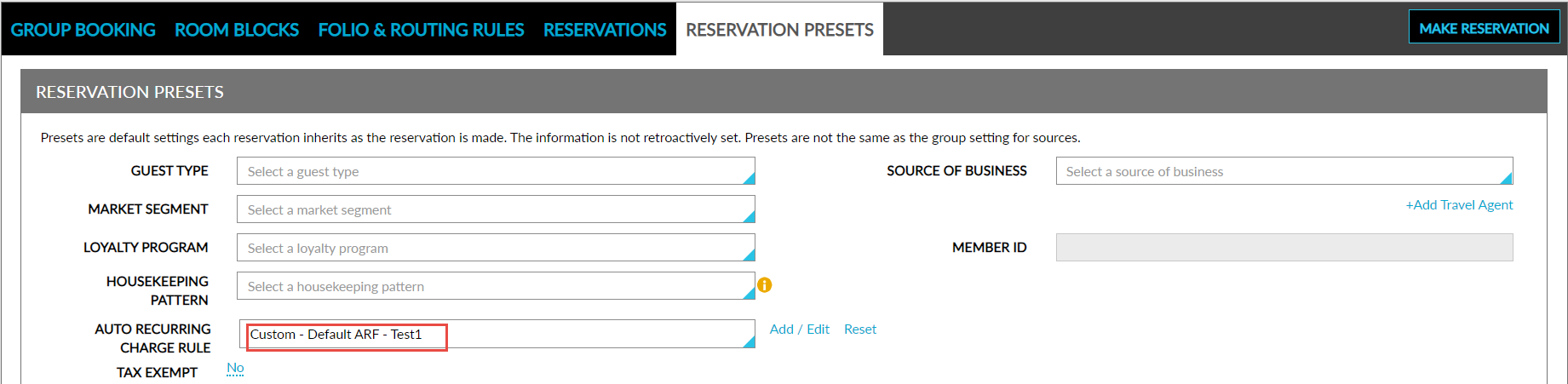
The modifications made to the rule are applicable only to the reservations created for the group and do not impact the parent rule created in the Guest Accounting screen.
Revert Changes Made to the Rule
Users can revert the changes made to the ARF rule associated with a group by clicking the Reset option beside the Auto Recurring Charge Rule drop-down list in the Reservation Presets tab of the group. This option is displayed only when the parent rule that was previously associated with the group is modified. When clicked, the Reset Auto Recurring Rule pop-up screen appears that prompts users to confirm if the changes made to the rule must be reverted.
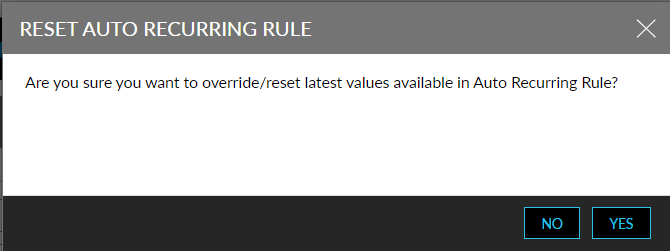
When users click Yes, the Apply Auto Recurring Rule pop-up screen appears that prompts users to select the group’s reservations for which the changes must be reverted. For the selected reservations, the changes are reverted, and the configurations made in the parent rule are applied.